It seems like everyone has their eyes trained on GA4, watching their Organic Traffic numbers change. Some are up, some are down, and a lot of marketers are staring at Data Studio dashboards trying to figure out what’s actually driving the shift.
AI Overviews are a big part of this story. Google Search Console now shows AI Overview and AI Mode queries, letting you see impressions, clicks, and CTR specifically from these AI result formats. That’s a significant upgrade from even a year ago, when most of this data was completely invisible.
But here’s the honest truth: tracking AI Overview traffic is still messy, partial, and requires cobbling together multiple tools to get anywhere close to a complete picture. This guide walks you through what’s actually possible, what the limitations are, and one method that our team uses to get more granular data than most.
Can You Actually Track Traffic From Google AI Overviews?
Sort of. And yes, that “sort of” does matter.
Google AI Overviews and AI Mode present a specific tracking challenge. AI Overview and AI Mode clicks are counted within the “Web” search type in Search Console; they’re not broken out separately by default, and they don’t feed into GA4 as a distinct traffic source.
That means if you’re relying purely on Google Analytics to answer “how much traffic am I getting from AI Overviews,” you’re going to come up empty. GA4 doesn’t natively distinguish between a click from a traditional organic result and a click from an AI Overview citation. They both show up as organic search. So what gives?
The good news is that there are workarounds. None of them are perfect, but together they give you a directional picture that can be pretty useful for understanding your AI visibility. Here’s how to build that picture.
How to Track AI Overview Traffic Using Google Search Console
Google Search Console is your starting point, but let’s be real about what it actually offers right now, because there’s a lot of conflicting information out there.
You may have seen articles describing a “Search Appearance” filter in GSC with AI Overview and AI Mode options that lets you isolate impressions and clicks from those result types specifically. Some properties do appear to have this. But Google hasn’t confirmed a universal rollout, and plenty of SEOs (including some well-regarded GSC experts) report not seeing it at all. If you’ve gone looking for it and come up empty, you’re not doing it wrong. It may just not be available for your property yet.
Here’s what’s actually confirmed: AI Overview data is being tracked in GSC, but it’s mixed into your standard search results data rather than broken out cleanly. Listings inside an AI Overview take on a ranking of #1, same as a Featured Snippet, so they’re in your data, just not labeled in a way that makes them easy to isolate.
What you can do reliably in Search Console right now:
- Open Google Search Console and navigate to Performance > Search Results
- Make sure both Total Impressions and Total Clicks are toggled on in the chart view
- Look for a divergence pattern: impressions trending flat or up while clicks trend down. That’s the AI Overview effect: search demand is still there, users just aren’t clicking through
- Click into the Queries tab and sort by impressions. Filter for high-impression queries where CTR has dropped significantly compared to 6-12 months ago
Those are likely to be your AI Overview casualties (even if GSC won’t label them as such directly).
The important nuance: AI Overview impressions tend to be vastly higher than clicks, with research showing CTR drops of 15-89% depending on query type. Don’t freak out, though. That’s just how AI Overviews work: your content is being surfaced and read, but users don’t always need to click through.
One practical tip: filter your Performance Report for queries where your average position is 1 but your CTR is unusually low (below 2%). These are strong candidates for AI Overview appearances: your content is there, it’s just not generating clicks in the traditional sense.
Bonus: Use a Custom Regex Filter to Surface AI Queries in GSC
Here’s a sneaky move that doesn’t get talked about enough. Traditional keyword searches are short: two, three, mayyyyybe five words. AI prompts are full thoughts: “What are the best low-code app development companies for building a custom CRM that integrates with Zoho for a B2B sales team?” That query is 10+ words, and it looks nothing like a traditional search term.
You can isolate these in Search Console using a custom regex filter:
- Go to Performance > Search Results
- Click + New and select Query
- Choose Custom (regex) and select Matches regex
- Paste this pattern: ^(?:\S+\s+){9,}\S+$
- Click Apply
This filters your query list to show only queries with 10 or more words, which is where conversational queries cluster. Scroll through the results and you’ll notice something striking: they read like prompts typed into a chat window, not keywords typed into a search bar.
This won’t tell you definitively that a query came from AI Mode rather than someone who hasn’t learned how to Google things typing a long question into Google. But it’s a directional filter that separates two very different types of search behavior inside your existing data, and it requires zero additional setup or tools.
At the end of the day, it’s worth doing before you go anywhere near a paid tracking solution.
How to Track AI Referral Traffic in GA4
Search Console only covers Google’s own AI features. For traffic coming from ChatGPT, Perplexity, Claude, and other external AI tools, you need GA4.
GA4 currently categorizes generative AI traffic as referral traffic, since it’s coming from another site’s domain. This makes it difficult to understand the true impact these tools have on your website without some configuration.
The fix is a custom channel group. Here’s how to set one up:
- In GA4, go to Admin > Data Display > Channel Groups
- Click Create new channel group and name it something like “AI Traffic”
- Click Add new channel, name it “AI,” and set the condition to Source > matches regex
- Paste a regex that covers your AI sources: chatgpt\.com|openai\.com|perplexity\.ai|claude\.ai|gemini\.google\.com|copilot\.microsoft\.com
- Click Reorder and move your AI channel above “Referral” so it takes priority
- Save
Note that a new channel group will not backfill historical data; it only tracks forward from the date you create it. So… set it up sooner rather than later.
Once it’s collecting data, go to Reports > Acquisition > Traffic Acquisition, switch the dimension dropdown to Session custom channel group, and you’ll see your AI traffic as its own line item.
A few things worth knowing about this data: GA4’s client-side JavaScript tracking cannot detect AI bot crawls that scrape your content without generating a browser visit. Mobile app traffic from ChatGPT and Claude often strips referrer headers entirely, appearing as “Direct.” So what you’re seeing is a floor, not a ceiling. The actual influence of AI on your traffic is likely higher than GA4 shows.
Pro tip: If you’re looking for a tool that can track LLM analytics all in one place, Goodie’s a great option.
Is it worth tracking anyway? Yes. According to a Seer Interactive study, ChatGPT traffic converts at 16% versus Google organic at 1.8%. A Microsoft Clarity study found AI-referred visitors convert to sign-ups at 11x the rate of search traffic. Small volume, disproportionate value.
What Is the Text Fragment Method for Tracking AIO Clicks (#:~:text=)?
This one is clever, and it’s the closest thing to native AIO tracking that exists right now.
When a user clicks a link inside a Google AI Overview, the URL they land on often includes a special parameter: #:~:text=. This is called a text fragment, and it tells the browser to scroll to and highlight a specific passage on the page. It’s how AI Overviews deep-link to the exact content they cited.
That parameter is your signal. If someone arrives on your site with #:~:text= in their URL, there’s a very good chance they came from an AI Overview, a featured snippet, or a People Also Ask result.
Setting up an event in GA4 that fires when the text fragment #:~:text= parameter is present in a page URL will reveal real traffic coming from AI Overviews, Featured Snippets, and People Also Ask. This technique gives you a directional estimate of clicks from these sources and is worth setting up via Google Tag Manager.
The basic GTM setup involves:
- Creating a trigger that fires on page views where the URL contains #:~:text=
- Using a custom JavaScript variable to extract the text fragment value from the URL
- Firing a GA4 event when that trigger matches, passing the page path and fragment text as event parameters
A word of warning: Not every link from AI Overviews includes this URL parameter, so you won’t be able to track every visitor that came from one of these features. In the spirit of tracking what you can without stressing over what you can’t, it’s a useful signal even if it’s incomplete.
How to Track AI Overview Traffic in GA4: The Custom Event Method
The text fragment method above tells you that an AI Overview sent someone to your site. What it doesn’t tell you is why: what the AI actually said when it cited you, which pages it’s sending traffic to, and what that means for your content strategy.
Most implementations stop at detecting the presence of #:~:text= and firing an event. Here’s how to set up the foundational version using Google Tag Manager and GA4:
- Detect AI Overview URLs: All AI Overview links include special query parameters by default. In Tag Manager, use a regular expression on the page URL to detect when those parameters are present; not just the text fragment, but the full parameter pattern that indicates an AIO referral.
- Fire a custom event: When the regex matches, Tag Manager fires a custom event to GA4. That event captures:
- The URL path the AI Overview sent traffic to
- Session data and other standard GA4 dimensions
- Analyze in GA4 In GA4 reporting, you can:
- Filter and report by the custom event name to isolate AIO traffic specifically
- See sessions and user behavior tied specifically to AI Overview visits
- View which pages are driving traffic from AIO citations
This gets you meaningfully further than a standard custom channel group alone. But there’s a layer beyond this; one that tells you not just which pages AI is citing, but the context around why. If you want to see how that works for your site, book a demo with our team and we’ll walk you through it 👀
How to Use Bing Webmaster Tools for AI Performance Reporting
Bing gets overlooked, but on this particular front it’s actually ahead of Google.
In February 2026, Microsoft announced AI Performance reporting in Bing Webmaster Tools. This dashboard provides a consolidated view of data collected from Microsoft Copilots and partners.
To access it, log into Bing Webmaster Tools and look for the AI Performance section in the left nav. You’ll see data on how your content is performing across Bing’s AI features, including Copilot citations.
It’s not a perfect picture of your full AI search footprint, but it’s one of the more transparent data sources available right now, and it requires zero additional setup beyond having your site verified in Bing Webmaster Tools.
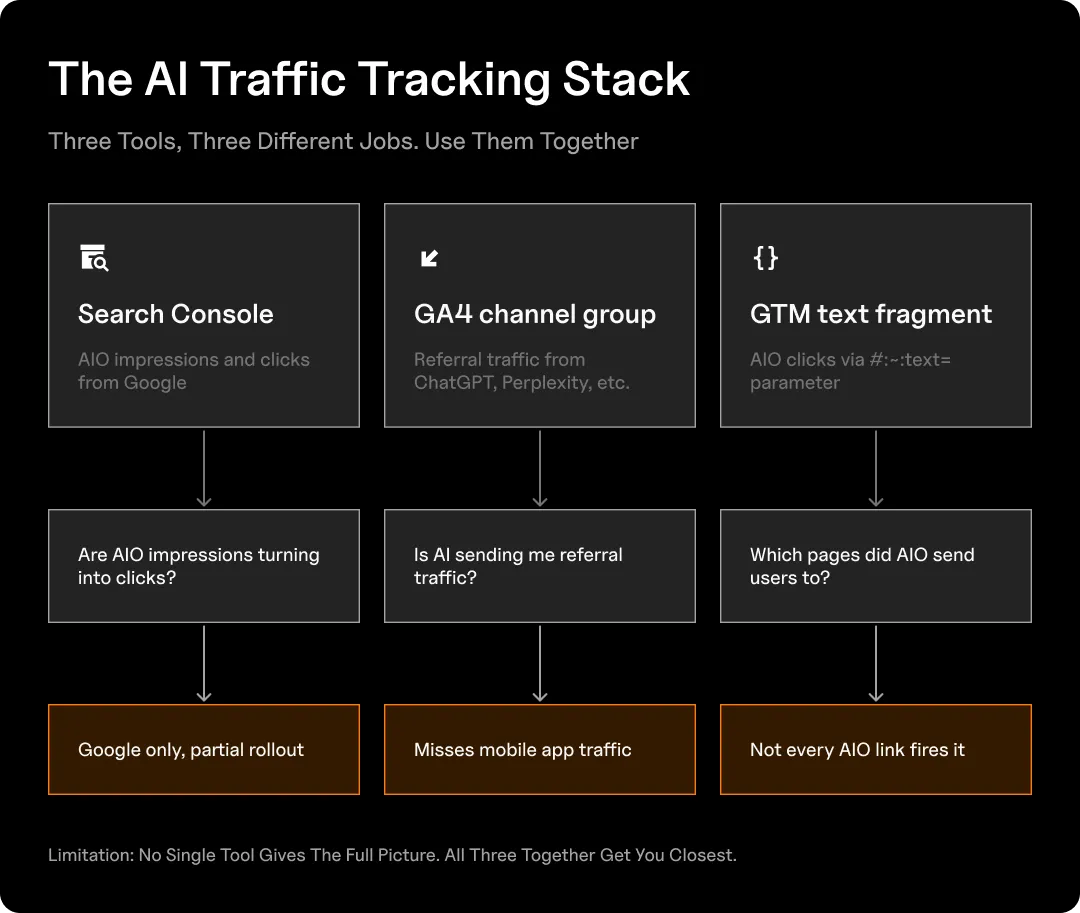
Recap: What Each Tool Tracks & What It’s Missing
| Tool | What It Tracks | What It Misses | Best For |
| Google Search Console | AIO impressions and clicks from Google. Divergence between the two signals AIO exposure. | ChatGPT, Perplexity, Claude, and all non-Google AI.Search Appearance filter not universally available yet. | Understanding Google AIO visibility and CTR trends over time. |
| GA4 Channel Group | Referral clicks from ChatGPT, Perplexity, Claude, Gemini, and others when referrer headers are passed. | Mobile app traffic (strips headers and shows as Direct).Bot crawls. Google AIO clicks specifically. | Measuring external AI referral volume and comparing against other channels. |
| GTM Text Fragment | Sessions where a user landed via a URL containing #:~:text= (strong signal of an AIO, featured snippet, or PAA click). | AIO clicks where the text fragment parameter wasn’t appended to the URL.Partial coverage only. | Identifying which pages are receiving AIO clicks and what content is being cited. |
| Bing Webmaster | Microsoft Copilot citation data. Most transparent AI performance reporting currently available. | Google AI, ChatGPT, Perplexity, and all non-Microsoft AI platforms. | Benchmarking your AI visibility with the most detailed native reporting out there right now. |
What Are the Limitations of AI Overview Tracking?
Let’s be honest about what you can and can’t know.
- You’re always working with partial data. Between bot crawls that don’t generate browser visits and the fact that GA4 has no native AI Overview category, every method above is capturing a subset of your actual AI exposure.
- Impressions don’t equal influence. Appearing in an AI Overview doesn’t always generate a click, but it still shapes brand perception. A user who reads an AI summary citing you as an authority didn’t click through, but they saw your name. That’s not captured in any analytics tool.
- Sidenote, for this one, we recommend looking into branded traffic growth over time; again, it’s not a direct metric, but if it spikes at any point, you can infer that some of it can be attributed to AI Overview inclusion leading to heightened brand awareness.
- The tools are changing fast. As new AI platforms emerge, your regex patterns and custom segments will need updating. This is a lively field right now, so revisit your filters often. What covers your AI sources today may be incomplete in six months.
The bottom line: Use what you have, acknowledge the gaps, and treat the data as directional rather than definitive.
How Does AI Overview Traffic Compare to Standard Organic Traffic?
The volume is lower, but the quality tends to be higher… and that gap is closing.
AI visitors often arrive with a degree of prequalification. They’ve already had a conversation with AI, and your site has come up as a source of useful information or even a direct recommendation. They’re not landing cold. Maybe room temp.
The behavioral data reflects this. Anecdotally, most of what the industry is hearing is that AI traffic tends to convert at a higher rate than organic, though AI visitors sometimes visit fewer pages and bounce more often than traditional search visitors. The pattern makes sense when you think about the behavior of the user: they came for a specific answer, they got it, they left. But the ones who stick around convert well.
From a volume standpoint, as of early 2026, Google still sends roughly 190x more traffic to websites than ChatGPT. AI referral traffic is real and growing fast, but it’s not replacing organic search anytime soon. The smarter frame is that these are complementary channels, and the brands that show up in both are building a compounding visibility advantage.
Tracking AI Overview Traffic: FAQs
What tools can I use to track AI Overview traffic?
Your core stack for Google-specific AI visibility monitoring is:
- Google Search Console (for AI Overview and AI Mode impressions/clicks from Google)
- GA4 with a custom channel group (for referral traffic from external AI tools)
- A GTM-based text fragment event (for AIO clicks specifically).
Bing Webmaster Tools gives you AI Performance data for Microsoft Copilot. Third-party tools like Goodie offer AI visibility monitoring on a prompt level, as well as agents, crawlers, and analytics, with the added layer of being an end-to-end AI search optimization platform.
Why does my organic traffic look fine in GA4 but my clicks are down in Search Console?
This is the AI Overview effect in action. Your content may be getting cited in AI Overviews (so generating impressions), but users are getting their answer from the Overview itself without clicking through.
Search Console shows the impression; GA4 only shows the click. Look for queries where you rank well but CTR is unusually low. Those are almost certainly AIO appearances.
Is it worth setting up AI tracking if my AI traffic is tiny right now?
Yes. Custom channel groups and GTM events don’t backfill, so the sooner you set them up, the more historical data you’ll have when AI referral traffic becomes a larger share of your mix. The brands that have clean data going back to 2025 and 2026 will have a meaningful advantage when they need to make investment decisions about AI search optimization.
Does appearing in AI Overviews hurt or help SEO?
Both can be true simultaneously. Being cited in an AI Overview builds brand authority and can increase CTR compared to uncited organic results on the same query. But AI Overviews also reduce overall clicks on that query by answering it directly. The net effect depends heavily on query type, industry, and whether you’re being cited or just displaced.